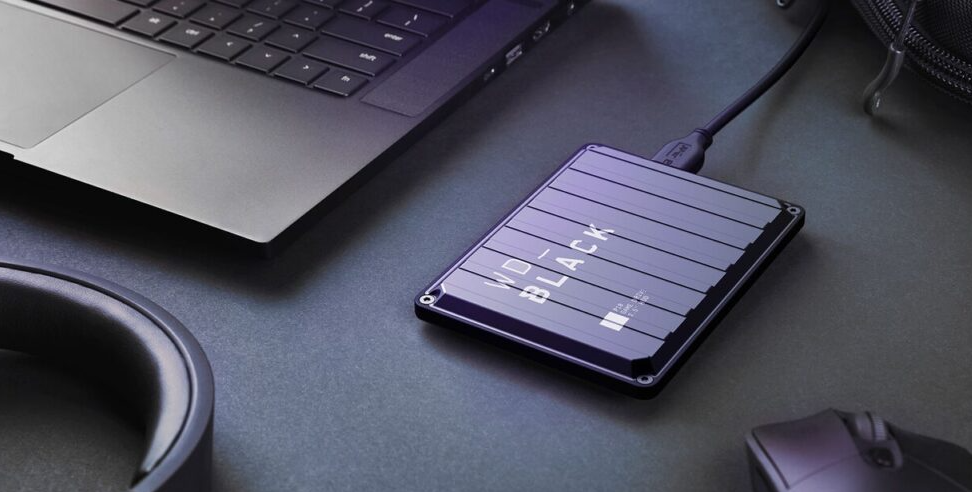
In 2025, laptops will continue to be essential for work, school, and entertainment. As programs and media files grow larger, many laptops may run out of storage quickly. This is where an external SSD for laptops can be helpful. It offers faster speeds, more storage, and is easy to carry, improving your laptop’s performance and capability. In this article, we’ll explain these benefits to help you choose the best external SSD for your laptop in 2025.
What is an External SSD for Laptop?
An external SSD (Solid-State Drive) is a portable storage device that connects to your laptop, typically via USB or Thunderbolt. Unlike traditional hard drives (HDDs), which rely on spinning disks to read and write data, SSDs use flash memory.
This allows for much faster data access, quicker file transfers, and more reliable performance. External SSDs are a great choice for anyone who wants fast, reliable, and durable storage without having to upgrade their laptop’s internal drive.
Why Consider an External SSD
External SSDs are a powerful way to boost your laptop’s performance, increase storage capacity, and make your data more portable and accessible.
- Faster Performance: Compared to traditional HDDs, SSDs deliver much higher read/write speeds. This means quicker file transfers, faster application launches, and smoother gaming experiences.
- Increased Storage: External SSDs come in sizes from 500GB to several terabytes, making them perfect for storing large files, big media libraries, and keeping backups safe.
- Portability and Convenience: Compact and lightweight, external SSDs are easy to carry and compatible with multiple devices. Many models support plug-and-play functionality, making it simple to access your files on the go.
External SSDs offer a combination of speed, storage, and portability, making it easy to manage your data wherever you are.
Key Factors to Look For in the Best External SSD for Laptop (2025)
When choosing the right external SSD for your laptop, consider these key factors to make the best decision:
Storage Capacity
Choose an external SSD based on your storage needs. Basic users can manage with 250GB–500GB for documents and photos. Media-heavy users may need 500GB–1TB for videos, music, and photo editing. Professionals should choose 1TB or more to manage large files efficiently.
Interface and Compatibility
When selecting an external SSD, ensure it is compatible with your laptop’s ports. USB 3.2 Gen2 provides fast speeds suitable for most everyday tasks, while Thunderbolt 3 drives deliver much higher speeds for demanding work and are especially well-suited for MacBook Pros.
Price and Budget
The cost of an external SSD depends on its speed and performance. Thunderbolt SSDs are usually more expensive because they deliver faster transfer rates, making them ideal for professional use. However, USB 3.2 Gen2 SSDs are more affordable while still delivering excellent performance for everyday use. High-end Thunderbolt drives are best suited for professionals who require maximum speed for demanding tasks.
Additional Features
External SSDs may include extra features to improve durability and security. Rugged designs, such as waterproof, shock-resistant, or dustproof models, are ideal for travel or outdoor use. Security features like hardware encryption and password protection help keep your sensitive data safe.
Select an external SSD that meets your needs to enhance speed and ensure dependable storage.
See also: Handyman Services for Convenient Home Repairs and Maintenance
Best Recommended External SSDs in 2025
Here are the best external SSDs for laptops in 2025, combining speed, portability, and reliability:
ADATA SC730 External SSD
- Speed: Up to 600 MB/s via USB 3.2 Gen2
- Design: Ultra-compact (36 mm, 7.8 g) with dual USB-C and USB-A connectors
- Eco-Friendly: 50% recycled plastic, fingerprint-resistant finish
- Capacity: 512 GB and 1 TB
- Compatibility: Windows, macOS, Linux, Android, latest-gen consoles
- Warranty: 5 years
Ideal for: Gamers and professionals needing portable, eco-friendly storage
ADATA SC750 External SSD
- Capacity: 500 GB / 1 TB / 2 TB
- Connection: USB 3.2 Gen2 (10 Gbps), backward compatible with USB 2.0
- Speed: Up to 1,050 MB/s read, 1,000 MB/s write
- Compatibility: Windows 10/11, macOS 13, Linux Kernel 6, Android
- Durability: Sturdy build for travel
- Includes: Quick Start Guide
- Warranty: 5 years
Ideal for: Gamers with large libraries who need fast, reliable, and affordable storage
ADATA SE920 External SSD
- Capacity: 1 TB / 2 TB / 4 TB
- Connection: USB4 (40 Gbps), compatible with USB 3.2 Gen2 and USB 2.0
- Speed: 3,800 MB/s read, 3,700 MB/s write
- Compatibility: Windows 10/11, macOS 13, Linux Kernel 6, Android 13
- Includes: USB4 Type-C to C cable, Quick Start Guide
- Warranty: 5 years
Ideal for: Enthusiasts and professionals who need ultra-fast transfers and cutting-edge performance
These SSDs combine speed, durability, and portability, making them excellent choices for modern gaming setups and professional use in 2025.
Best Use Cases for an External SSD for a Laptop
Students
Store research papers, presentations, and projects without worrying about running out of space. Fast SSD speeds ensure files open quickly, helping you stay organized and on schedule.
Content Creators
Work seamlessly with large photo, video, and design files. An SSD speeds up editing, safely backs up projects, and makes it easy to carry your media library between devices.
Gamers
Keep multiple games on hand and enjoy significantly faster load times. Portable SSDs make it easy to carry your entire game library and play on different devices without the need to re-download.
Professionals
Securely store client files, presentations, and sensitive data. SSDs with encryption add extra security, and reliable backups make it easy to work across multiple devices without interruptions.
Travelers & Remote Workers
Carry important files on the go without relying on the internet or cloud storage. Lightweight, compact SSDs are ideal for planes, cafés, or remote work locations.
Photographers & Videographers
Easily back up photos and videos, manage multiple projects, and transfer large files quickly, minimizing the risk of losing important content.
Developers & Engineers
Work efficiently with large files such as virtual machines, CAD designs, or codebases. An SSD speeds up compiling, testing, and file transfers, ensuring smoother workflow and faster overall performance.
Media Enthusiasts
Keep movies, TV shows, and music portable without filling your laptop’s storage. Enjoy entertainment anywhere, anytime.
Backup & Disaster Recovery
Use an SSD for secure off-site backups. If your laptop fails, you can quickly restore important data and have peace of mind.
Collaborative Work
Easily share large files with teammates and work efficiently across multiple systems. Fast transfers improve productivity on group projects.
An external SSD is ideal when you need extra storage, faster file access, portability, or secure backups. It’s useful for students, creatives, gamers, professionals, and anyone who wants reliable storage.
Tips for Maintaining and Maximizing Your External SSD
To keep your external SSD reliable and performing at its best, follow these simple maintenance practices:
Safely Eject Before Unplugging
Always eject your SSD through your computer’s operating system before unplugging it. This ensures all files are saved and prevents data corruption. Unplugging while the drive is active can cause file loss or damage.
Limit Unnecessary Data Writes
SSDs have a limited number of write cycles. Avoid constantly overwriting large files or transferring unnecessary data. Use your SSD for important tasks like storing media, running programs, or handling big projects, and keep less important files on other drives.
Keep the SSD Cool
Heat can reduce performance and shorten your SSD’s lifespan. Avoid direct sunlight, hot surfaces, or enclosed spaces. Ensure proper ventilation during use. Overheating can slow down your drive and may even cause hardware failure over time.
Update Firmware and Drivers
Check for firmware updates from the SSD manufacturer regularly. These updates often improve performance and fix bugs. Also, keep your laptop’s drivers up to date to ensure smooth operation and compatibility.
Organize Data Efficiently
Regularly delete unnecessary files and keep your SSD organized. Leave 10–20% of free space to maintain performance, write data efficiently, and extend the drive’s lifespan.
Proper SSD care such as safe ejection, limited writes, cooling, updates, and organized files, helps it stay fast and last longer.
Conclusion: Choosing the Best External SSD for Your Laptop in 2025
Choosing the right external SSD is all about finding the right balance between speed, storage, compatibility, portability, durability, and cost. A high-speed SSD ensures that files transfer quickly and programs run smoothly, which is especially useful for tasks like video editing, gaming, or handling large projects. Having enough storage means you can keep all your important documents, media, and work files without worrying about running out of space.
Additionally, choosing a drive compatible with your laptop and operating system ensures seamless use. By selecting an SSD that meets your specific needs, you can enhance your laptop’s overall performance and keep your files safe, secure, and easily accessible wherever you go.